Installation Guide
This guide will walk you through setting up VimAbl on your system.
Prerequisites
Before installing VimAbl, ensure you have the following:
- Ableton Live - Any version with Remote Script support
- Hammerspoon - macOS automation tool (Download)
- Python 3.11+ - For external tools (AST parser, WebSocket server)
- uv - Python package manager (Install)
Installation Steps
1. Install uv
Choose your preferred installation method:
2. Install Project Dependencies
# Navigate to the VimAbl directory
cd /path/to/VimAbl

# Sync all dependencies (creates .venv automatically)
uv sync

# Or with dev dependencies
uv sync --all-extras
3. Activate Virtual Environment
Choose the method that works best for your workflow:
If you have direnv installed:
4. Install Remote Script
Create a symlink to the remote script in Ableton's Remote Scripts folder:
Production Alternative
For production use, copy instead of symlinking:
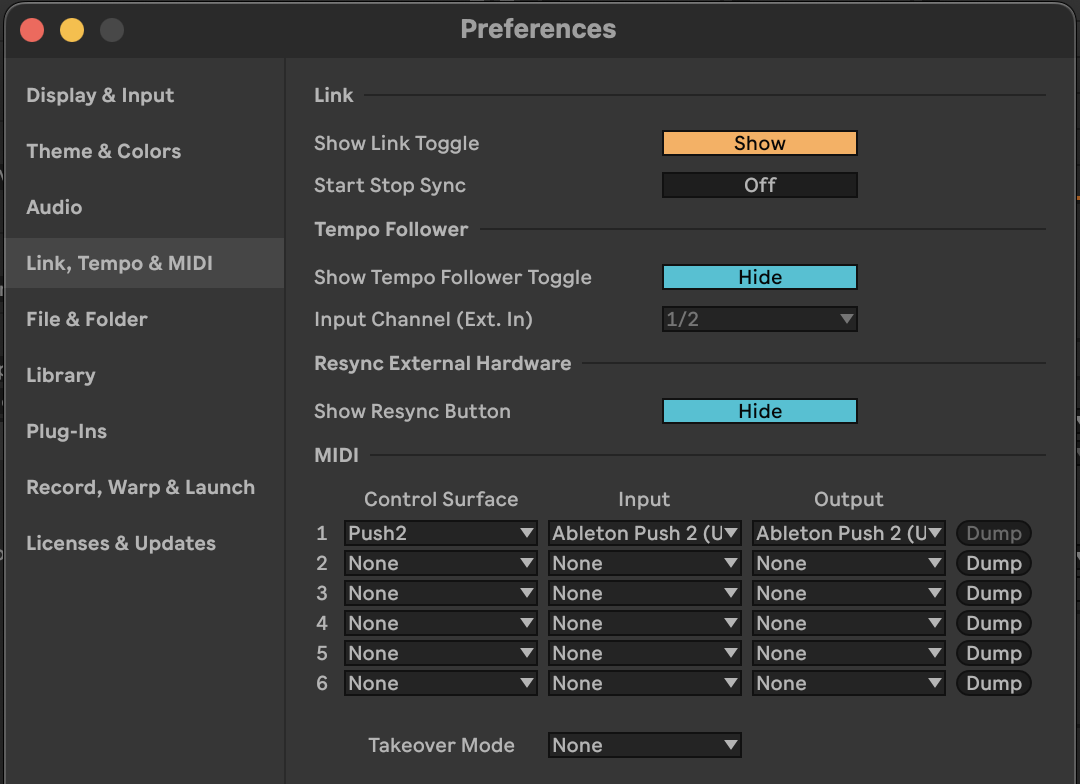
5. Enable Remote Script in Ableton
- Open Ableton Live Preferences
- Go to Link/Tempo/MIDI tab
- Under Control Surface, select LiveState in an empty slot
- Set Input/Output to None
- Restart Ableton Live
6. Install Hammerspoon Scripts
Create symlinks for development (recommended):
# Create directory structure
mkdir -p ~/.hammerspoon/keys

# Symlink all Hammerspoon files
ln -s "$(pwd)/src/hammerspoon/ableton.lua" ~/.hammerspoon/
ln -s "$(pwd)/src/hammerspoon/app_watcher.lua" ~/.hammerspoon/
ln -s "$(pwd)/src/hammerspoon/config.lua" ~/.hammerspoon/
ln -s "$(pwd)/src/hammerspoon/live_state.lua" ~/.hammerspoon/
ln -s "$(pwd)/src/hammerspoon/status_check.lua" ~/.hammerspoon/
ln -s "$(pwd)/src/hammerspoon/utils.lua" ~/.hammerspoon/
ln -s "$(pwd)/src/hammerspoon/keys/navigation.lua" ~/.hammerspoon/keys/
ln -s "$(pwd)/src/hammerspoon/keys/editing.lua" ~/.hammerspoon/keys/
ln -s "$(pwd)/src/hammerspoon/keys/views.lua" ~/.hammerspoon/keys/
Production Alternative
For production, copy files instead:
7. Configure Hammerspoon
Add to your ~/.hammerspoon/init.lua:
Then reload Hammerspoon config (Menu bar icon → Reload Config)
8. Verify Installation
Check Remote Script is Loaded
# View Ableton's log
tail -f ~/Library/Preferences/Ableton/Live\ */Log.txt

# Look for: "Live State Remote Script initialized"
Test Server Connection
Test in Hammerspoon Console
Open Hammerspoon console and run:
You should see the first track in Ableton Live selected.
Troubleshooting
Remote Script Not Loading
- ✅ Check folder is named exactly
LiveState - ✅ View
~/Library/Preferences/Ableton/Live */Log.txtfor errors - ✅ Ensure Python script has no syntax errors:
Server Connection Fails
Hammerspoon Not Detecting Live
- ✅ Check console for:
"Ableton VimMode: Application watcher started" - ✅ Verify Hammerspoon has accessibility permissions in System Preferences
- ✅ Try reloading Hammerspoon config
Next Steps
- ✅ Quick Start Guide - Learn the basics
- ✅ User Guide - Explore all features
- ✅ Keybindings Reference - Full command list
Need more help? Check the Troubleshooting Guide or FAQ.